Samsung Data Migration Software: How to Move Your Files Without Losing a Thing
Admin · Jul 2, 2026
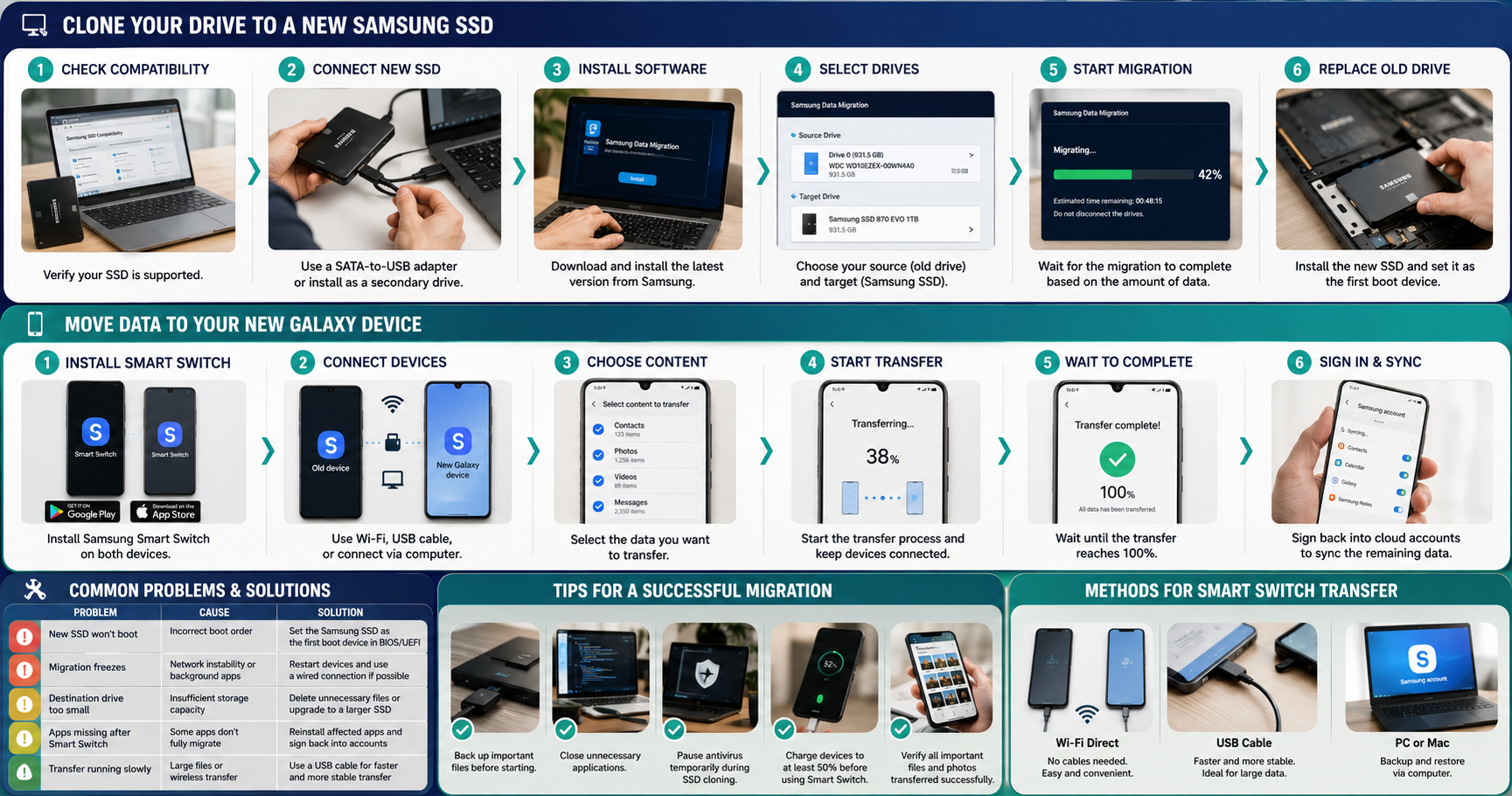
Moving to a New Samsung Drive or Device Doesn't Have to Be Stressful
Upgrading your storage or switching to a new device is exciting, but transferring years of files, photos, documents, and settings can seem overwhelming. Samsung Data Migration software is designed to simplify this process, whether you're cloning an existing hard drive to a new Samsung SSD or moving all your data to a new Samsung Galaxy phone.
This guide explains how Samsung's migration tools work in 2026, which tool you should use, and how to avoid common mistakes during the transfer process.
Understanding Samsung's Two Migration Tools
Many users refer to "Samsung Data Migration" as a single application, but Samsung actually offers two different tools, each designed for a specific purpose.
Tool | Best For | Platform |
Samsung Data Migration | Cloning an existing HDD or SSD to a Samsung SSD | Windows PC |
Samsung Smart Switch | Transferring data between smartphones | Android, Windows, macOS |
Choosing the correct tool before you begin makes the migration process much smoother.
Samsung Data Migration (For SSD Upgrades)
Samsung Data Migration is designed specifically for upgrading your computer's storage.
It copies:
Operating system
Installed applications
User files
System settings
Partitions
Once cloning is complete, your new Samsung SSD boots exactly like your old drive, with no need to reinstall Windows or your applications.
Samsung Smart Switch (For Galaxy Devices)
Samsung Smart Switch helps users transfer data from an old smartphone to a new Galaxy device.
It supports transferring:
Contacts
Photos
Videos
Messages
Call history
Applications
Device settings
Calendar events
Smart Switch works with Samsung devices, other Android phones, and even iPhones.
Supported transfer methods include:
Wi-Fi Direct
USB cable
PC or Mac backup and restore
Step-by-Step Guide: Cloning a Drive with Samsung Data Migration
Step 1: Check Drive Compatibility
Samsung Data Migration only supports Samsung SSDs as the destination drive.
Before starting, verify that your SSD appears on Samsung's supported compatibility list.
Step 2: Connect the New SSD
Depending on your computer:
Laptop Users
Connect the new SSD using a SATA-to-USB adapter or external enclosure.
Desktop Users
Install the new SSD as a secondary internal drive.
Ensure both drives are detected before launching the software.
Step 3: Download and Install Samsung Data Migration
Download the latest version directly from Samsung's official website.
Install the application on the computer containing your existing drive.
Step 4: Select Source and Destination Drives
The software automatically detects available storage devices.
Verify that:
Drive | Description |
Source Drive | Your existing hard drive or SSD |
Target Drive | Your new Samsung SSD |
Double-check these selections because cloning completely overwrites the destination drive.
Step 5: Start the Migration
Click Start to begin cloning.
Transfer times depend on the amount of data stored.
Typical estimates include:
Amount of Data | Estimated Time |
100 GB | 20–30 minutes |
500 GB | 45–90 minutes |
1 TB | 1–3 hours |
Avoid shutting down the computer or disconnecting either drive during the process.
Step 6: Replace the Old Drive
After cloning finishes:
For Laptops
Replace the old drive with the new Samsung SSD.
For Desktop PCs
Either:
Set the new SSD as the first boot device in BIOS/UEFI, or
Disconnect the old drive after confirming successful migration.
Restart your computer to verify everything loads correctly.
Step-by-Step Guide: Moving Data with Samsung Smart Switch
Using Smart Switch is equally straightforward.
Install Samsung Smart Switch on both devices.
Connect the devices using Wi-Fi, USB cable, or a computer.
Choose the content you want to transfer.
Start the migration process.
Wait until the transfer reaches 100%.
Sign back into cloud accounts to sync remaining data.
Most users complete a phone migration within 20 to 60 minutes.
Common Migration Problems and Solutions
Problem | Cause | Solution |
New SSD won't boot | Incorrect boot order | Set the Samsung SSD as the first boot device in BIOS/UEFI |
Migration freezes | Network instability or background applications | Restart both devices and use a wired connection if possible |
Destination drive too small | Insufficient storage capacity | Delete unnecessary files or upgrade to a larger SSD |
Apps missing after Smart Switch | Some applications don't fully migrate | Reinstall affected apps and sign back into your accounts |
Transfer running slowly | Large files or wireless transfer | Use a USB cable for faster and more stable migration |
Tips for a Successful Migration
Follow these best practices before starting:
Back up important files before cloning or transferring data.
Close unnecessary applications.
Temporarily pause antivirus software during SSD cloning.
Charge both phones to at least 50% before using Smart Switch.
Verify that your important files and photos transferred successfully before erasing the old drive or resetting the old phone.
For more practical technology tutorials, visit our Read Latest Blogs section.
You may also find these guides helpful:
SSD Installation Guide
How to Upgrade Laptop Storage
How to Clone Windows to an SSD
Samsung SSD Performance Tips
Free File Management Tools
Frequently Asked Questions
Does Samsung Data Migration work with non-Samsung SSDs?
The destination drive must be a Samsung SSD.
However, the source drive can be from almost any manufacturer.
Will I lose my data if migration fails?
No.
Samsung Data Migration and Smart Switch leave your original device untouched during the process.
If migration fails, your original files remain available.
How long does Samsung Smart Switch take?
Most phone transfers take between 20 and 60 minutes.
Using a USB cable is generally much faster than transferring over Wi-Fi, especially for large photo and video libraries.
Can I migrate from a non-Samsung phone?
Yes.
Samsung Smart Switch supports transfers from:
Android phones
iPhones
Older Samsung Galaxy devices
Should I keep my old drive after cloning?
Yes.
It's recommended to keep your original drive for a few weeks until you've confirmed that the new SSD works correctly and all files transferred successfully.
Key Points
Samsung Data Migration software makes upgrading to a new Samsung SSD simple, while Samsung Smart Switch provides an easy way to move data to a new Galaxy device.
For the best results:
Use the correct Samsung migration tool for your device.
Verify your source and destination drives before starting.
Create a backup of important files.
Do not interrupt the migration process.
Confirm that all files have transferred successfully before wiping your old device.
For more technology tutorials, explore our Read Latest Blogs, discover our Free Online Tools, or visit the Toolsimpli Homepage for additional guides and helpful resources.