Microsoft Malicious Software Removal Tool (MSRT): The 2026 Guide
Admin · Jul 6, 2026
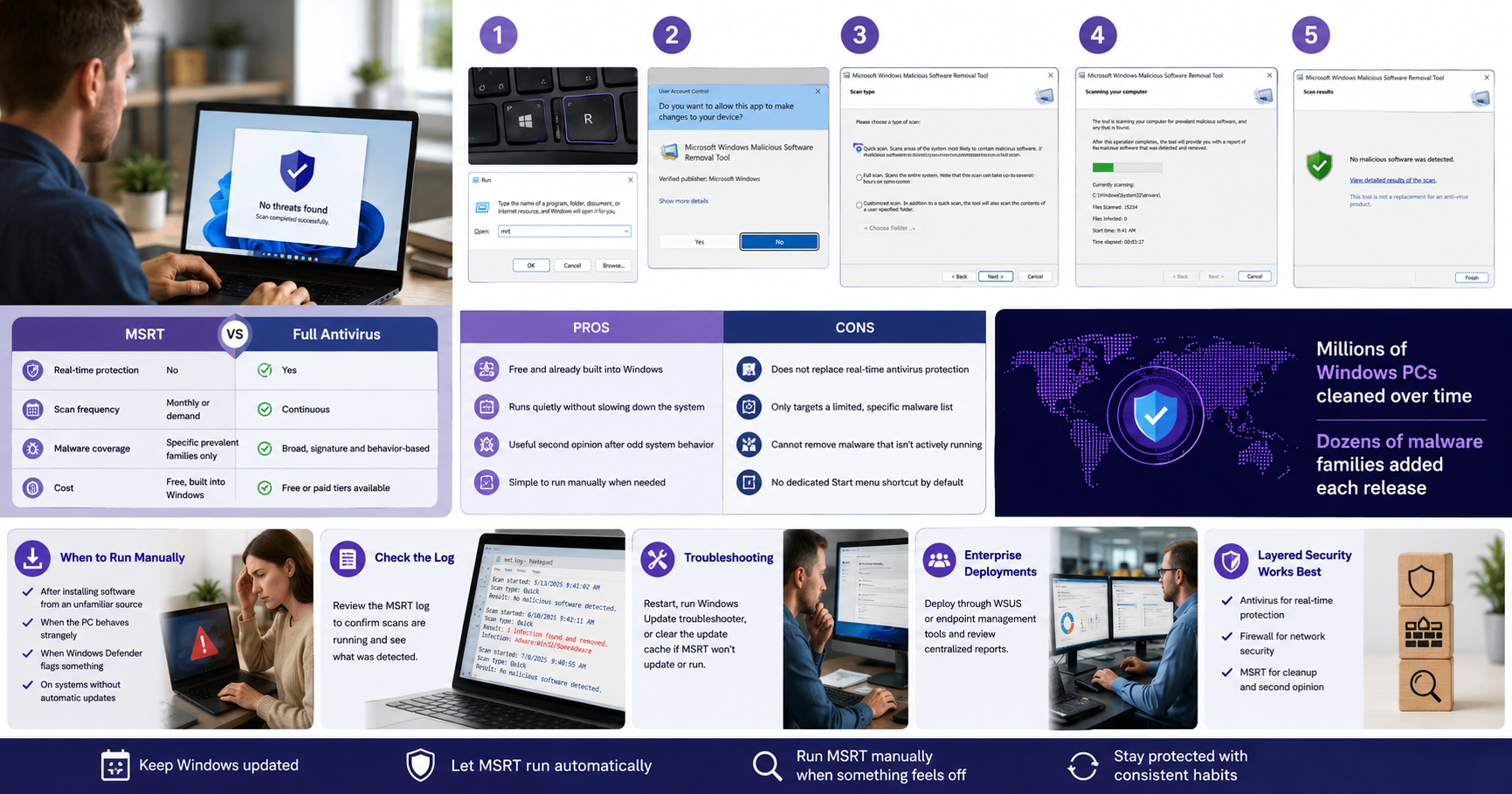
Windows quietly runs a cleanup scan almost every month, and most people never notice. That scan comes from the Microsoft Malicious Software Removal Tool, a free utility built into Windows Update that checks for a specific list of widespread, high-risk malware families and removes them if found.
What MSRT Actually Does
MSRT is not an antivirus program. It doesn't run in the background watching every file you open the way Windows Defender does. Instead, Microsoft releases an updated version roughly once a month, usually on Patch Tuesday, and it runs a one-time scan for a defined set of prevalent malware families, then tries to clean up and reverse whatever changes that malware made to the system.
How MSRT Differs From a Full Antivirus
MSRT removes malware after infection; antivirus software blocks it in real time.
MSRT only targets a specific, limited list of well-known malware families.
MSRT does not scan continuously — it runs once per release, or on demand.
MSRT does not remove general spyware, only the malware families it's built to detect.
It's meant to complement Windows Defender or another antivirus, not replace it.
How to Run It Manually
Press Windows key + R, type mrt, and press Enter.
Approve the User Account Control prompt if it appears.
Choose Quick Scan, Full Scan, or Customized Scan depending on how thorough you want the check to be.
Let the scan finish, then review the results summary.
Select View Detailed Results for a full breakdown if anything was found.
Price and Availability
MSRT is free and comes built into Windows 10 and Windows 11. Most systems receive it automatically through Windows Update, running silently in the background unless it finds something. If automatic updates are turned off, or an offline system needs a manual check, the standalone version is also available directly from Microsoft's download page and updated on the same monthly schedule.
Where MSRT Fits in a Broader Security Routine
No single tool covers everything, which is exactly why MSRT is designed as a supplement rather than a centerpiece. A reasonable monthly routine looks something like this: keep Windows Defender or a chosen antivirus running continuously, let MSRT arrive automatically through Windows Update, and run a manual MSRT scan any time something on the system feels off, like unexpected pop-ups, a sudden slowdown, or unfamiliar processes in Task Manager.
A Real-World Scenario
Imagine a small office computer starts running unusually slow after an employee downloads a free file-conversion program from an unfamiliar website. Windows Defender doesn't flag anything unusual, but the slowdown persists. Running MSRT manually catches an active instance of a known adware family that had slipped past the standard scan, reverses the changes it made, and the system speeds back up. That's the exact scenario MSRT is built for: a second opinion when something doesn't feel right.
Recent Updates Worth Knowing About
Microsoft's monthly MSRT releases keep expanding coverage to newer threats, including ransomware variants and more evasive malware that uses automated obfuscation techniques. Each release typically documents which malware families were added, which is useful for IT teams tracking what their environment is now protected against.
Data Point: The Scale of MSRT's Reach
Microsoft has reported removing malware from millions of unique Windows computers over the tool's lifetime, with new versions consistently adding coverage for dozens of additional malware families each release. That scale is exactly why MSRT continues to ship as a default part of Windows Update rather than an optional add-on: it functions as a low-effort, high-reach safety net across an enormous installed base of Windows machines.
Expert Perspective on Layered Security
Security professionals almost universally describe good protection as layered rather than single-tool. A modern antivirus catches most threats in real time, a firewall filters suspicious network traffic, and a supplementary scanner like MSRT catches anything that slipped through and became active. No single layer is meant to carry the whole job, and MSRT's narrow, well-defined role is part of what makes it a dependable piece of that layered approach rather than a redundant one.
MSRT vs. Full Antivirus Software
Feature | MSRT | Full Antivirus |
|---|---|---|
Real-time protection | No | Yes |
Scan frequency | Monthly or on demand | Continuous |
Malware coverage | Specific prevalent families only | Broad, signature and behavior-based |
Cost | Free, built into Windows | Free or paid tiers available |
Pros and Cons
Pros | Cons |
|---|---|
Free and already built into Windows | Does not replace real-time antivirus protection |
Runs quietly without slowing down the system | Only targets a limited, specific malware list |
Useful second opinion after odd system behavior | Cannot remove malware that isn't actively running |
Simple to run manually when needed | No dedicated Start menu shortcut by default |
A Quick Note on Log Files
MSRT keeps a record of every scan it runs in a log file on the system, which is worth checking periodically even when nothing seems wrong. Reviewing that log occasionally gives a clearer picture of what's been caught over time and confirms the tool is actually running on schedule rather than silently failing to update.
Troubleshooting: When MSRT Won't Run or Update
Occasionally MSRT fails to install or update through Windows Update, usually because of a pending restart, a corrupted update cache, or a Group Policy setting that blocks it in a managed enterprise environment. The fix is typically the same as most Windows Update issues: restart the machine, run the built-in Windows Update troubleshooter, or clear the software distribution cache before trying again. In managed corporate environments, IT administrators may need to check deployment settings if MSRT isn't reaching machines that should be receiving it automatically.
When You Should Run MSRT Manually
After installing software from an unfamiliar source
When the PC behaves strangely: slow performance, odd pop-ups, unexplained network activity
When Windows Defender flags something and you want a second check
On systems that don't receive automatic updates and need a manual security pass
Building Good Habits Around Routine Scans
The systems that stay clean longest usually belong to people who treat security as a routine, not a reaction. That means letting Windows Update deliver MSRT automatically every month, keeping a full antivirus running continuously, and running a manual MSRT scan any time something feels slightly off rather than waiting for a clear sign of infection. None of that requires technical expertise, just consistency.
Looking Ahead: MSRT and Evolving Threats
As malware authors lean more on AI-assisted obfuscation to dodge detection, tools like MSRT will keep expanding their detection logic to catch behavioral patterns, not just known file signatures. That's a meaningful shift from the tool's earlier, simpler releases, and it's part of why keeping Windows fully updated matters as much as ever going into the rest of 2026.
Key Takeaways
MSRT is a free, built-in cleanup tool, not a substitute for full antivirus protection.
It targets a specific, regularly updated list of prevalent malware families.
Run it manually with the mrt command whenever something feels off.
Pair it with Windows Defender or another antivirus for layered protection.
MSRT and Enterprise Deployments
IT administrators managing dozens or hundreds of machines often deploy MSRT through the same tools they use for other Windows updates, whether that's Windows Server Update Services, a modern endpoint management platform, or standard Windows Update policies. The tool's behavior stays the same at any scale, a monthly targeted scan, but centralized reporting becomes more valuable in larger environments, since it gives administrators a consolidated view of which machines had detections and which malware families showed up most often across the fleet.
MSRT is one of those background tools that quietly does its job without asking for attention. If you manage documentation or reports around your system's security checks, the Developer Tools and PDF Tools sections can help you log and format that information cleanly. For more security-related guides, check Read Latest Blogs, browse Image Tools if you need to capture and edit screenshots of scan results, or visit the FAQs page for quick answers.
Related posts

Droven.io AI for Business: A Complete Guide to Smarter Business Growth with Artificial Intelligence
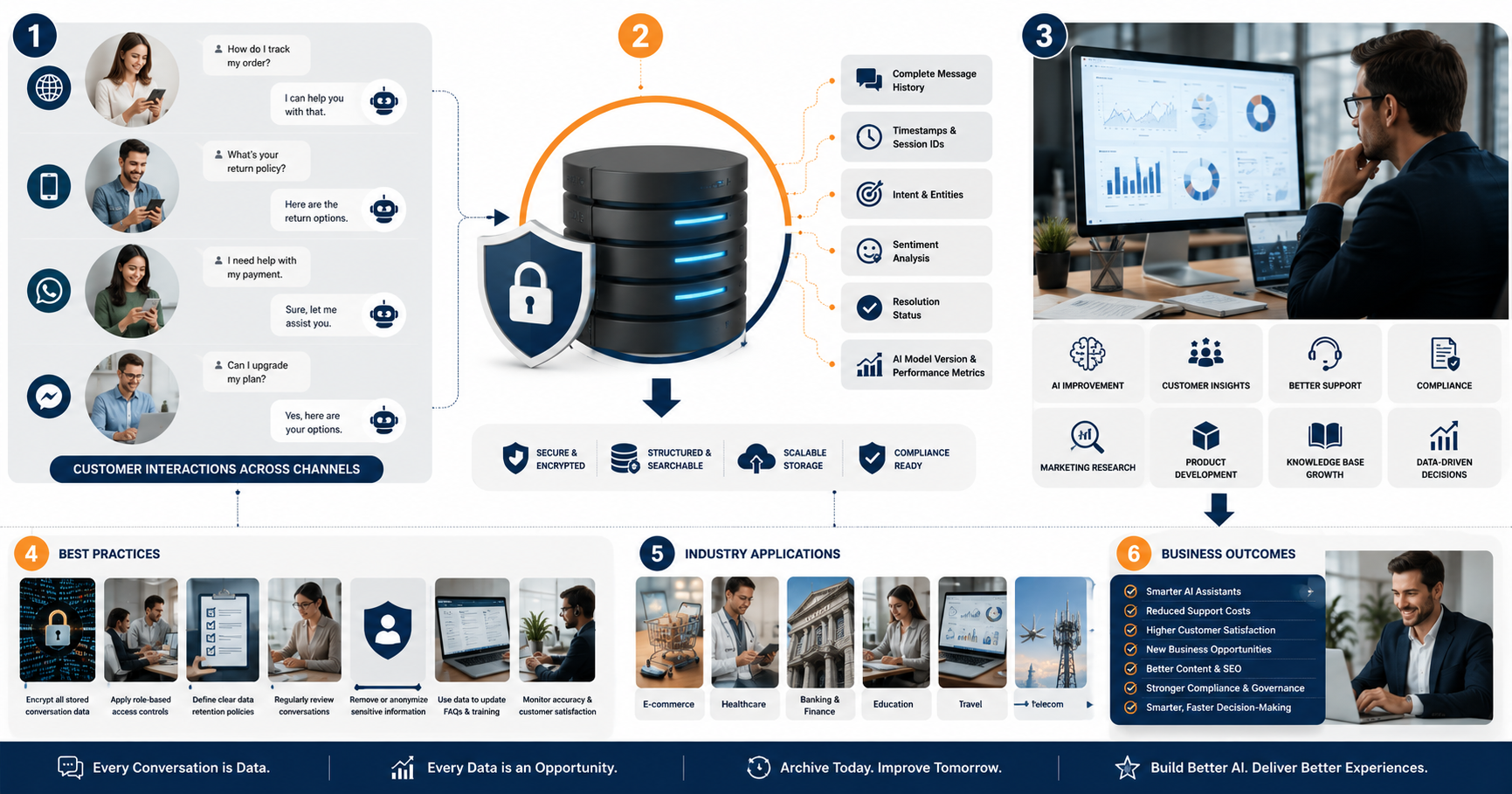
AI Chatbot Conversations Archive: Why It Matters in 2026
As conversational AI continues to evolve, businesses that invest in structured conversation archiving will be better equipped to understand their customers, optimize operations, and maintain a competitive advantage in an increasingly AI-driven world

Our Dream AI Free: Complete Guide to Features, Benefits, Uses, Pros & Cons

Abraham Quiros Villalba AI Tool: Features, Benefits, Use Cases & Everything You Need to Know (2026)
The Abraham Quiros Villalba AI Tool is an AI-powered platform designed to help users analyze complex data, automate research, and generate intelligent insights. It uses modern artificial intelligence technologies such as machine learning, predictive analytics, and natural language processing (NLP) to simplify decision-making across various industries.

AI Transformation Is a Problem of Governance, Not Just Technology
By treating AI transformation as a governance challenge rather than simply a technical upgrade, businesses can reduce risk, improve trust, ensure regulatory compliance, and create sustainable value. In an era where AI increasingly influences critical decisions, strong governance is no longer optional—it is the foundation of successful AI transformation.